Comparing Tagged PDFs from Office and Acrobat
After my initial disappointment with the Office 2007 plug-in for creating PDFs, I've had some discussion with the Microsoft team, and a chance to do a bit more testing. This post compares the conversion of a simple Word 2007 document with the Office plug-in, Acrobat 8.1, and OpenOffice.
I have to thank Jeff Bell and Cheri Ekholm of the Microsoft Office team, they kindly answered my many pestering questions, and took time to look into the issues I was having.
The Source
I created a simple document using Word 2007, using it's default font (Cambria), and the default styles. Into this document I added a title, some lists, a few paragraphs, an image (with alt), a quote, a two column section, and a table (with headings). I've put all the documents in a zip file (650k) if anyone else wants to test them as well.
Basic stuff, but everything was correct for making an accessible PDF, i.e. using the native style structures in Word.
The conversion settings
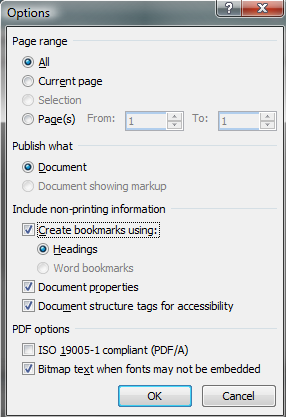
I used the defaults for each method, making sure that it was creating a tagged PDF. These are the settings in the office plug-in:
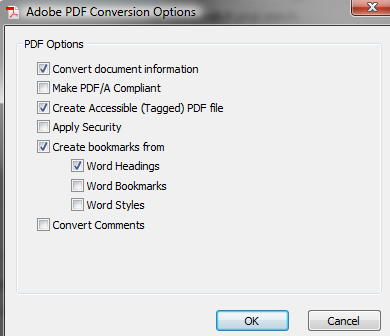
These are the options from Acrobat 8.1:
The results
Both Acrobat and Office produce a decent document that appears the same as the original, and is tagged. However, there are some differences.
File size
The Acrobat version was 148KB, the Office one is 424KB. For such a simple document (with default fonts) I was quite surprised, apparently it's due to more information being embedded, which is obvious in small documents, less so in larger documents.
Tags
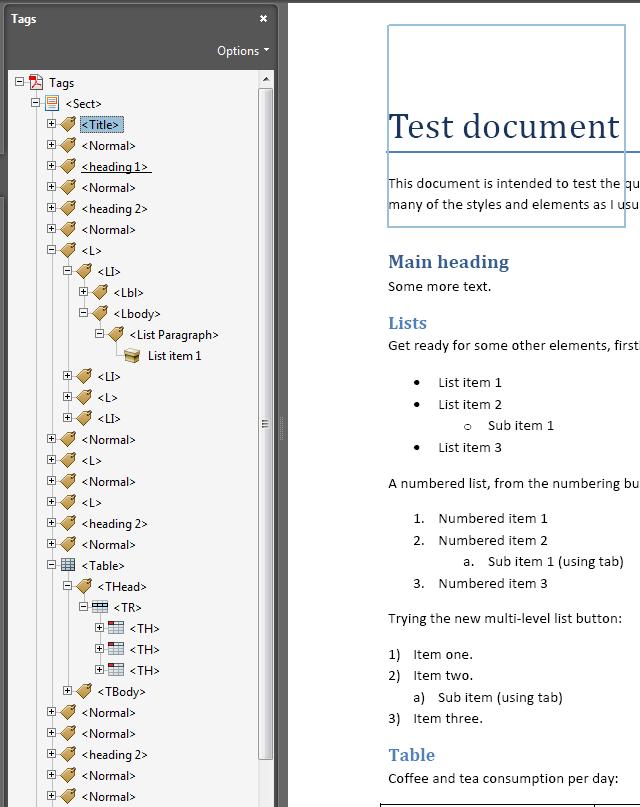
There were some immediate differences, although mostly it was subtle differences like Acrobat using <Heading 2> and Office using <H2>.
The best way to assess the tags is to view them in Acrobat Pro, here are a couple of snapshots, you'll probably want to open them in new windows or tabs:
Created with Acrobat
Created with Office 2007 PDF plug-in
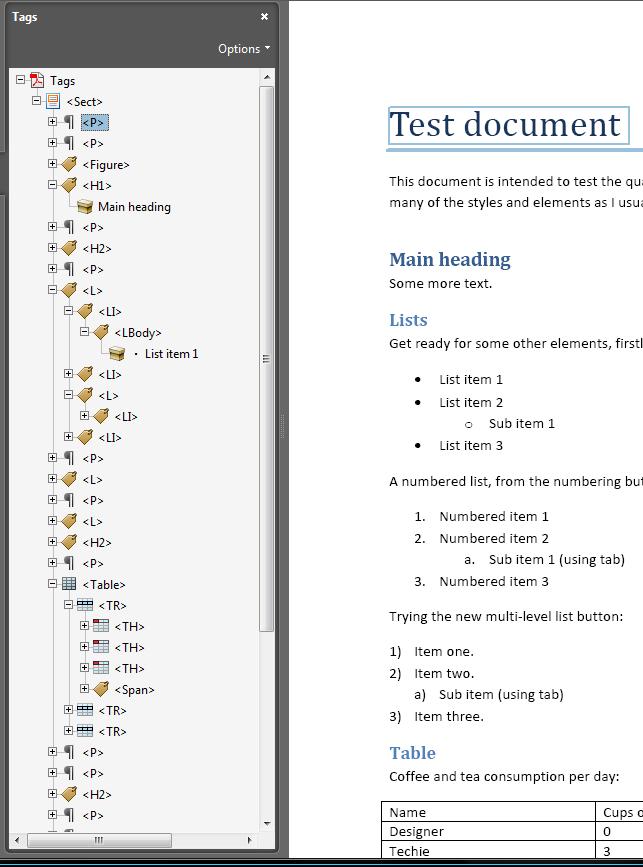
The main problem found was in Office, where the tag for the image was mysteriously placed immediately after the second paragraph, instead of on the second page. This is likely to be a bug.
The second issue was that the quote style in Word didn't translate to a quote tag. Apparently, this is because Office uses the underlying styles, not the style name shown when editing. For example, this is the modify style dialogue for the Title style:
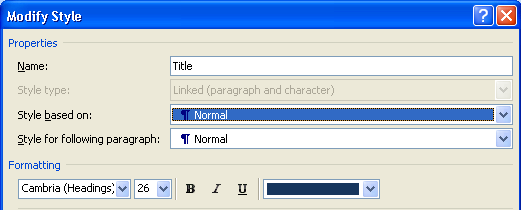
This method creates two issues in this document:
- The Title style came across as a paragraph.
- The Quote style came across as a paragraph.
If a style isn't in the styles set, you can't create a template that will automatically produce the right tag in the PDF. Comparing the styles list against the PDF tag list, there are quite a few missing (e.g. article, link, reference). However, I'm not actually sure how important that is, at least for now, as current screen readers don't make use of 'rare' elements yet.
Acrobat uses the style names, rather than the style they are based on, so whatever you call each style will become the tag. That is why you get <Heading 2> rather than <H2>.
I sent the documents to a friend (Léonie Watson) for a 'blind' test (in both senses, she didn't know what created each PDF), using current versions of JAWs and Acrobat. Most of the tags were fine in both, so both versions of the headings 'work', even though the Office method matches the PDF standard set better. The Acrobat version seems to put the bullet points on separate lines (in the tags, therefore for screen readers), which is strange when reading.
What it does mean is that the default styles will not create what you think they do when using the Office plug-in. This makes it extra effort to set up a template for creating accessible PDFs.
Other accessibility features
The read out loud function works equally well for both - no problem there. Changing the colour scheme also worked well for both.
Document re-flow
This was not the same. In a previous document (from the last article) reflow had removed the text (due to a font issue). For the Office created PDF test document, reflow doesn't actually work at all, the option is grayed out:
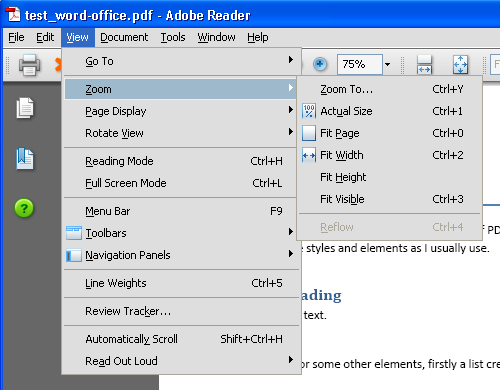
I can't tell why this is, I don't know of another PDF reader that offers the function, and the spec is, well, long, and I haven't read it yet. It might be that the Office plug-in doesn't do something, or it might be the Acrobat reader isn't accepting the input as it should.
OpenOffice
OpenOffice is the poor cousin in terms of creating accessible PDFs, you'd have to do quite a lot of Work (in Acrobat Pro) to overcome the issues for each document:
Open Office (at least from version 2.4) can export a tagged PDF, and when creating from within OpenOffice (rather than importing a Word file) the headings, lists and alt text all come through fine. Changing colours and reflow (with the exception of the image being dropped to the bottom) also work fine. (Thanks to David for the update).
Just be careful to tick the 'tagged PDF' option, as it is not on by default. Also be careful when importing from Word documents, as the following problems were found with this method:
- The Alt text was not included.
- Headings were brought through as paragraphs (even though they were OpenOffice headings).
- Lists items were not nested in the list (i.e. the second item was not in the list).
- The Quote was not brought through as a quote.
Overall
Overall, the Word & Acrobat combination provides the most effective workflow for creating accessible PDFs. With a good template set up, or even using the default styles, it's pretty much fire and forget (assuming the document includes everything it needs).
However, it's worth remembering two things about the Office 2007 plug-in:
- It's a version 1 program.
- It's free.
The first means that it could be updated in future to iron out the bugs (notably the re-flow issue, as you can't get around that).
The second means that it might be more effective for an organisation to use the Office plug-in, and have a couple of people with Acrobat Pro to sort out the few accessibility issues. We haven't quite been relieved of the Adobe accessible PDF tax yet, but it's a step in the right direction.
Appendix: Other Office programs
Cherie Ekholm from the MS team described a little about how tagging with the plug-in varies depending on the program. Word, PowerPoint and Publisher have extensive tagging. (NB: I don't think Acrobat supports Publisher, at least not well in the testing I've done).
Visio, Access, OneNote and Excel have much more limited tagging, but all do give users the opportunity to add alt text for images. I think Excel is the only disappointment there, the others have never benefited from good tagging support. I can't imagine how you would usefully tag Visio, but I'll have a look later.
The Excel functionality was described this way:
while Excel does some tagging of
<TR>and<TD>with the Office plug-in, it doesn't do it well unless you use the new tables feature in 2007 for the data you want to tag. Because there is no mechanism to mark the header row in an Excel table or in the spreadsheet itself, there is no tagging for<TH>. Word is currently the only Office application that has the ability to identify table headers. As a user, the Excel behavior doesn't make sense to me because most spreadsheets look like they are a type of table (whether you apply the new table feature or not). But Excel spreadsheets are not tables unless you use the new feature.
The important thing is that it's possible to structure the PDF from the base document, before the PDF process is started. Then the next most important aspect of creating accessible PDFs is that it's easy, default, or possible to enforce the accessible practices in the base document.
So we now have step one.